Bluebook App for Digital SAT: Features and Quirks
The Bluebook app for Digital SAT is the one piece of test prep almost nobody practices, and it costs students points. Every question, every tool, every timer lives inside this single College Board app, yet most test-takers open it for the first time on exam morning. The fix takes one afternoon: install Bluebook, run the pre-check, and take a full practice test so the interface stops being a surprise.
What strikes me most after studying how the Digital SAT moved onto Bluebook is how much the format rewards familiarity over raw content knowledge. A student who knows where the reference sheet hides, how to flag a question, and why Desmos beats a hand-held under time pressure simply moves faster than an equally prepared student meeting the app cold. This guide walks through the download, the system requirements, the practice tests, the calculator, and the quirks that trip up first-timers.
What Is the Bluebook App for the Digital SAT?
Bluebook is College Board’s free digital testing app, and it runs the entire Digital SAT, PSAT/NMSQT, and digital AP exams. You sign in with your College Board account, enter a room code from the proctor on test day, and work through four adaptive modules. The app downloads test content to your device beforehand, so the questions run locally even if the network drops.
That local-first design is the reason a Wi-Fi hiccup does not stop your clock. Bluebook needs an internet connection to launch and to submit, but not during the exam itself. Between those two moments, everything happens on your machine, which is also why a crash rarely erases work.
Why Practicing Inside Bluebook Matters
The interface is unfamiliar to anyone who has not practiced inside it. Paper-SAT habits do not transfer: there is no bubble sheet, no flipping back across sections, no margin scribbling on the question booklet. The reading passage sits on the left, the question on the right, and the tools live behind small icons most students never click during a timed run.
If you do nothing else with Bluebook before test day, take one full-length practice test inside the app. Not on paper, not on a competitor’s website: inside Bluebook. The goal is muscle memory for the timer, the annotation tool, the Mark for Review flag, and the Desmos calculator. Students who skip this step spend their first real module learning the interface instead of answering questions.
How Do You Download and Install Bluebook?
Download Bluebook from College Board’s official download page, then install it like any other app for your operating system. The process takes a few minutes: pick your platform, install, open, and sign in with the College Board account you use for registration. Do this at least two days before test day, never on exam morning.
On a Mac or Windows PC, you download an installer and run it. On an iPad, you install Bluebook from the App Store. On a school-managed Chromebook, an administrator typically deploys it for you. The official College Board download page links the correct version for each platform, so you avoid the lookalike apps that show up in search.
Running the Device Pre-Check
After install, open Bluebook and run the device pre-check before you ever sit for a test. The pre-check confirms your OS version, available storage, secure-testing-mode support, and battery readiness in under two minutes. A failure days ahead of the exam is a fixable inconvenience. The same failure at 7:45 AM on test day has no quick remedy.
Run the pre-check on the exact device you plan to test with, on the same login. If your school issues you a Chromebook for the exam, do not pre-check on your home laptop and assume the result transfers. The two devices report different specs, and only the one in the test room counts.
What Are the Bluebook System Requirements?
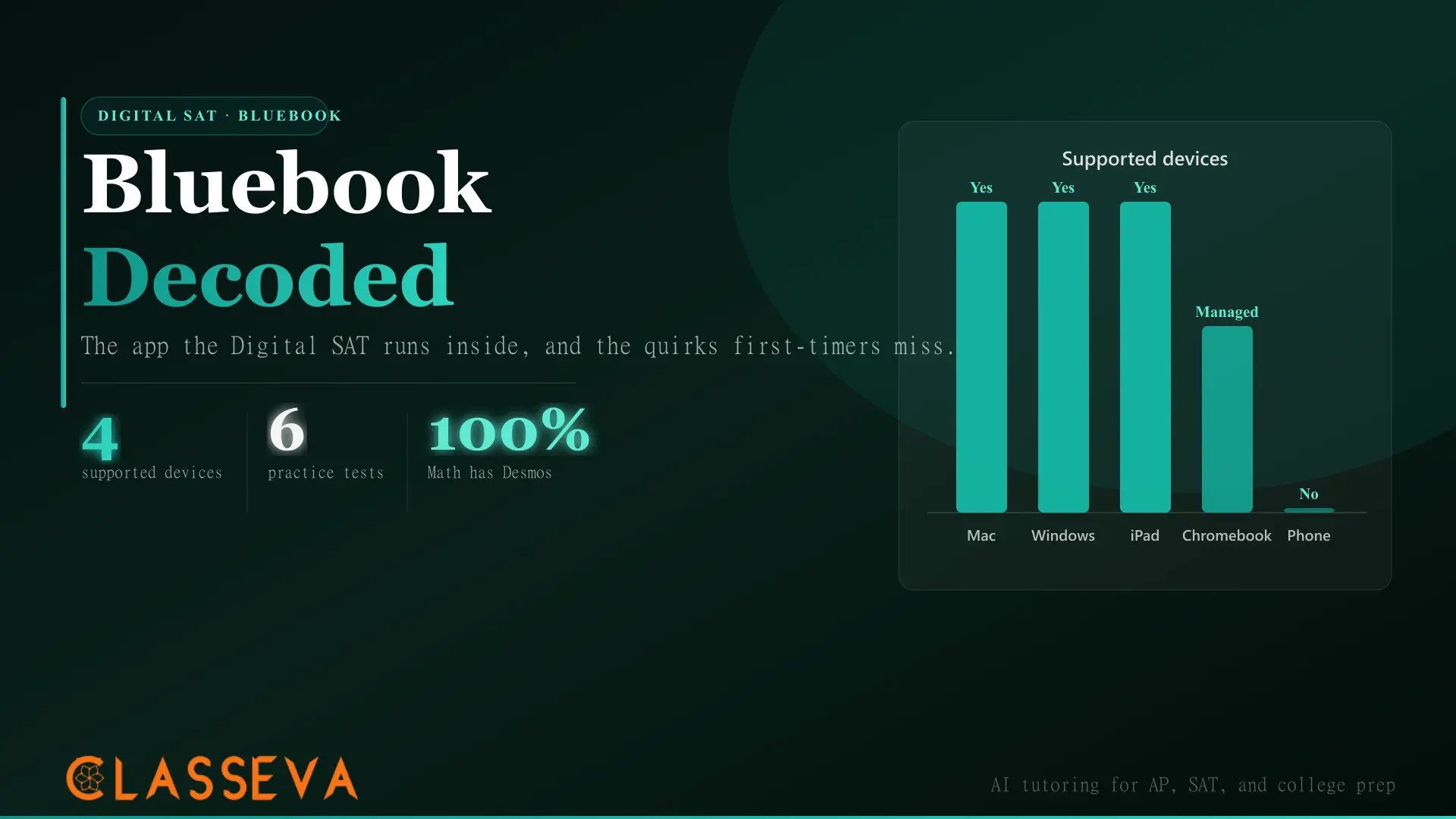
The bluebook system requirements cover four supported platforms with minimum specs on each: a recent macOS, Windows 11 (recommended), current iPadOS, or ChromeOS 132 or higher. Every device needs at least 1 GB of free storage, a screen of at least 10 inches for laptops or 8 inches for tablets, and roughly 3 hours of battery life for the SAT.
| Device | Operating System | Key Requirement |
|---|---|---|
| Mac | Recent macOS (Intel or Apple chip) | 1 GB free storage; 10 in screen |
| Windows PC | Windows 11 recommended (no S mode) | Win 10 ends fall 2026 [VERIFY] |
| iPad | Current iPadOS | Do not upgrade iPadOS right before the test |
| Chromebook | ChromeOS 132+ (school-managed only) | No personal Chromebook; no external keyboard |
Approximate Bluebook device requirements. Source: College Board Bluebook device documentation. [VERIFY: bluebook.collegeboard.org/technology/devices/requirements]
Device Rules That Surprise People
Two rules catch families off guard. First, a personal Chromebook does not work: only a school-managed Chromebook passes, because Bluebook needs management controls to enter secure mode. Second, no phone works, ever, as a testing device. The screen-size floor (10 inches for laptops, 8 inches for tablets) rules out small tablets and every phone on the market.
Apple often ships a new iPadOS in early fall, right before October and November SAT dates. Upgrading the night before your test is a known cause of Bluebook compatibility failures, because the app needs time to certify each new OS version. If your iPad already passes the pre-check, leave the operating system alone until after your exam. A working setup beats the newest one.
What Practice Tests Are Inside Bluebook?
Bluebook includes several full-length adaptive practice tests for the Digital SAT, commonly cited as six. [VERIFY: current count on satsuite.collegeboard.org] Each one mirrors the real exam: two adaptive Reading and Writing modules, two adaptive Math modules, and automatic scoring the moment you finish. After the test, My Practice shows your scores and routes you to targeted follow-up.
These practice tests are the closest thing to a dress rehearsal that exists. Because they run the same adaptive routing as the real SAT, your Module 1 performance determines whether Module 2 serves the harder or easier path, exactly as it will on test day. A practice score from Bluebook predicts your real range far better than any third-party simulation.
The Untimed Test Preview
Bluebook also includes a test preview: a short, untimed set of questions whose only job is to let you handle every tool without a clock. You will not receive a score from the preview. You will learn where the annotation tool, line reader, answer eliminator, Mark for Review flag, reference sheet, and Desmos calculator all live.
Run the test preview first, then take a scored practice test. The preview removes the panic of meeting unfamiliar icons; the practice test builds stamina and pacing. Doing the preview during a full practice run wastes the practice test, because you stop to explore instead of answering under time. Separate them.
Test Preview
- •Untimed; no clock pressure
- •No score and no feedback
- •Short set of sample questions
- •Purpose: learn every on-screen tool
- •Do this first, before any practice test
Full-Length Practice Test
- •Timed; same module structure as the real SAT
- •Scores automatically in My Practice
- •Adaptive routing mirrors test day
- •Purpose: build pacing, stamina, and a score estimate
- •Take at least one before your real exam
The Built-In Tools and Their Quirks
Bluebook ships with a fixed set of on-screen tools, and each has a quirk that only practice reveals. The Math section carries a Desmos calculator and a reference sheet. The Reading and Writing section carries an annotation tool and a line reader. Every section carries a Mark for Review flag, an answer eliminator, a countdown timer, and a question navigator.
The Built-In Desmos Calculator
The bluebook calculator is a full Desmos graphing calculator, and it sits on every Math question in both modules. You can graph functions, solve equations, build tables, and find intersections without touching a hand-held. College Board allows an approved physical calculator too, but the embedded Desmos handles every Digital SAT Math question on its own.
The quirk: Desmos is slower than a hand-held under time pressure if you have never used it. Graphing a system to find its solution feels elegant in practice and frantic on test day when you are hunting for the right menu. Students who drill Desmos beforehand turn it into their fastest tool. Those who meet it cold lose 30 seconds per question to navigation. For a full breakdown, see our Digital SAT Desmos strategy guide.
The Reference Sheet and Timer
Bluebook displays a reference sheet of common geometry formulas on Math questions, the same set printed on the paper SAT for years. It covers areas, volumes, the Pythagorean relationship, and special right triangles. You do not need to memorize these, but you do need to know the sheet exists and where its icon sits, or you will waste time recalling a formula that was one click away.
The countdown timer lives in the upper area of the screen and can be hidden if it rattles you. A hidden timer reappears with a five-minute warning. Deciding in advance whether you test better watching the clock or ignoring it removes one more on-the-fly decision from a high-pressure module.
Annotating, Flagging, and Returning Within a Module
The annotation tool lets you highlight and underline passage text in Reading and Writing, then attach a short note to the highlight. It is the closest Bluebook gets to margin scribbling, and it helps on inference and main-idea questions where you want to mark the line that proves the answer. The annotation disappears when the module closes, so it serves the current question set, not later ones.
Mark for Review flags any question you want to revisit. The question navigator then shows every flagged item, letting you jump straight back to it before the timer runs out. The hard rule: this works only inside the current module. Once you submit a module or its clock expires, every question in it locks, flagged or not. You cannot return to Reading and Writing Module 1 after Module 2 begins, and you cannot carry an unanswered Math question across the break.
Never leave a flagged question blank when you move on. The Digital SAT has no wrong-answer penalty, so eliminate what you can, lock in a best guess, then flag it. If you run out of time before returning, your guess still has roughly a one-in-four chance. A flag with no answer behind it scores zero if the timer beats you back to it.
For a deeper look at how the two-module routing shapes your score ceiling, read our Digital SAT adaptive structure explainer. For the full exam-morning sequence inside Bluebook, the Digital SAT test day walkthrough covers check-in through score release.
What Happens If Bluebook Crashes Mid-Test?
If the bluebook app freezes or crashes during the SAT, raise your hand and alert the proctor immediately. Do not relaunch or troubleshoot it yourself. Bluebook saves your answers continuously and stores the test content locally, so a crash or a network drop does not erase your work. The proctor resumes your exam, on the same device or a replacement, without costing testing time.
This is the design payoff of Bluebook running locally. Because the four modules live on your device once the exam starts, a Wi-Fi outage is a non-event for your questions, and a frozen app reopens to the question you were on. The clock pauses while staff handle the issue, so a technical failure does not eat your minutes.
| What Goes Wrong | What To Do | What Bluebook Protects |
|---|---|---|
| App freezes or crashes | Raise hand; tell proctor | Answers saved; resumes on your question |
| Device battery dies | Plug in or switch device | Progress preserved on your account |
| Wi-Fi or network drops | Keep testing | Content runs locally; no interruption |
| Power outage at center | Follow staff instructions | College Board may reschedule if extended |
Bluebook crash and failure handling. Source: College Board test day documentation. [VERIFY: satsuite.collegeboard.org/sat/test-day]
Report any significant technical problem to College Board within a short window after the exam, typically two business days, through the SAT test day support page. A timely report preserves your options if a disruption affected your performance. Waiting past the deadline closes that path.
Plan Your Bluebook Test Date
Once Bluebook is installed and you have run a practice test, the next decision is when to sit for the real exam. Test date timing interacts with application deadlines and score release: scores arrive about 13 days after test day, so an October date returns results in time for most early-action deadlines, while a December date may miss binding early decision but still serves regular decision.
Optimal Test Date Selector
Enter your target score, current score, and application deadlines to find the best SAT test dates for your Bluebook exam timeline.
If you are still weighing the Digital SAT against the Enhanced ACT, your PSAT result is the first data point worth checking. Our PSAT/NMSQT and National Merit guide explains how PSAT scores predict SAT performance, and the Reading and Writing strategy guide breaks down question types by domain so your Bluebook practice tests translate into points.
Key Takeaways
- The Bluebook app for Digital SAT is free and mandatory. The entire exam runs inside it, so install it at least two days before test day and run the in-app pre-check on your testing device.
- Only four device types work: Mac, Windows PC, iPad, and school-managed Chromebook. Phones and personal Chromebooks fail, and screens must be at least 10 inches for laptops or 8 inches for tablets.
- Bluebook includes several full-length adaptive practice tests that score automatically and mirror the real module routing. Take at least one inside the app before exam day.
- Run the untimed test preview first. It teaches every on-screen tool without burning a scored practice test.
- The built-in Desmos calculator appears on every Math question, alongside a reference sheet of geometry formulas. Drill Desmos beforehand or it slows you down under time.
- You can flag and return to questions within a module, never across modules. Once a module locks, those questions are gone, so always leave a best guess behind every flag.
- If Bluebook crashes, alert the proctor and do not troubleshoot. Answers save continuously and content runs locally, so a crash or network drop preserves your work and your clock.